Using the CLI
Run abacusai in a project folder and you get an interactive session: a composer at the bottom, the conversation above it, and the agent working in the directory you started from.
This page covers the session itself. To install the CLI see CLI installation, to configure it see Settings, and to run it from a script or CI job see Scripting and CI.
The composer
The composer is the input line. The first character you type can switch it into another mode.
| You type | What the composer becomes |
|---|---|
| anything | A message to the agent |
/ | The command picker. Keep typing to filter it. |
@ | A file picker. Pick a path and it is mentioned in your message. |
! | A terminal. The rest of the line runs in your shell, and the agent sees the command and its output. |
? | The shortcut help below |
Press Backspace on an empty composer to go back to an ordinary message.

Keyboard shortcuts
| Key | What it does |
|---|---|
Enter | Send the message |
\ then Enter, or Shift+Enter | Insert a newline instead of sending |
Shift+Tab | Cycle the agent mode |
Esc Esc | Clear the composer. On an empty composer, while the agent is idle, open /rewind. |
Ctrl+_ | Undo in the composer |
Ctrl+V | Paste an image from the clipboard |
↑ ↓ | Move by line, then through your prompt history at the first and last line |
Tab | Move the focus ring through cards and links in the transcript |
Ctrl+G | Open the focused link in your browser |
Ctrl+O | Toggle the expanded view of the transcript. Esc closes it. |
Ctrl+Z | Suspend the CLI (macOS and Linux; no effect on Windows) |
Shift+Enter needs a terminal that supports the kitty keyboard protocol or modifyOtherKeys. \ followed by Enter works everywhere, which is why the help line shows it.
Stopping and quitting
| State | Esc | Ctrl+C / Ctrl+D |
|---|---|---|
| The agent is working | Stop the turn | Stop the turn |
| The agent is asking permission | Reject | Reject |
| Idle, composer has text | Press twice to clear it | Clear it, then press the same key again to quit |
| Idle, composer empty | Take one message back out of the queue, or press twice to open /rewind | Clear the queue, then press the same key again to quit |
Stopping a turn puts anything you had queued back into the composer, so nothing you wrote runs on its own afterwards. The second press has to be the same key and has to land within two seconds.
Esc Esc only reaches /rewind while the agent is idle and there is something to rewind to. During a turn the first Esc stops it.
Vim mode
Turn on Vim mode in /settings (or /vim on) to edit the composer modally. Esc leaves insert mode for a normal mode with motions (hjkl, w/e/b, 0/^/$, gg/G, f/t and ;/,), operators (d/c/y/>/< with counts, motions and text objects), registers with p/P, . to repeat, and v/V visual modes. i, a and o go back to typing. Enter always sends, in every mode.
Agent modes
The mode decides how much the agent asks before it changes anything. Shift+Tab cycles it for the current session.
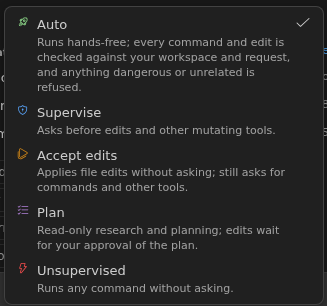
Sessions start in Auto. Shift+Tab goes Auto → Supervise → Accept edits → Plan, and pressing it once more at the end offers Unsupervised, which takes a second press to confirm. /mode shows the current mode, and /mode <name> switches straight to one.
Modes, what each one allows, and the rules that override them are covered in Settings.
When the agent does ask, it shows you exactly what it wants to do:
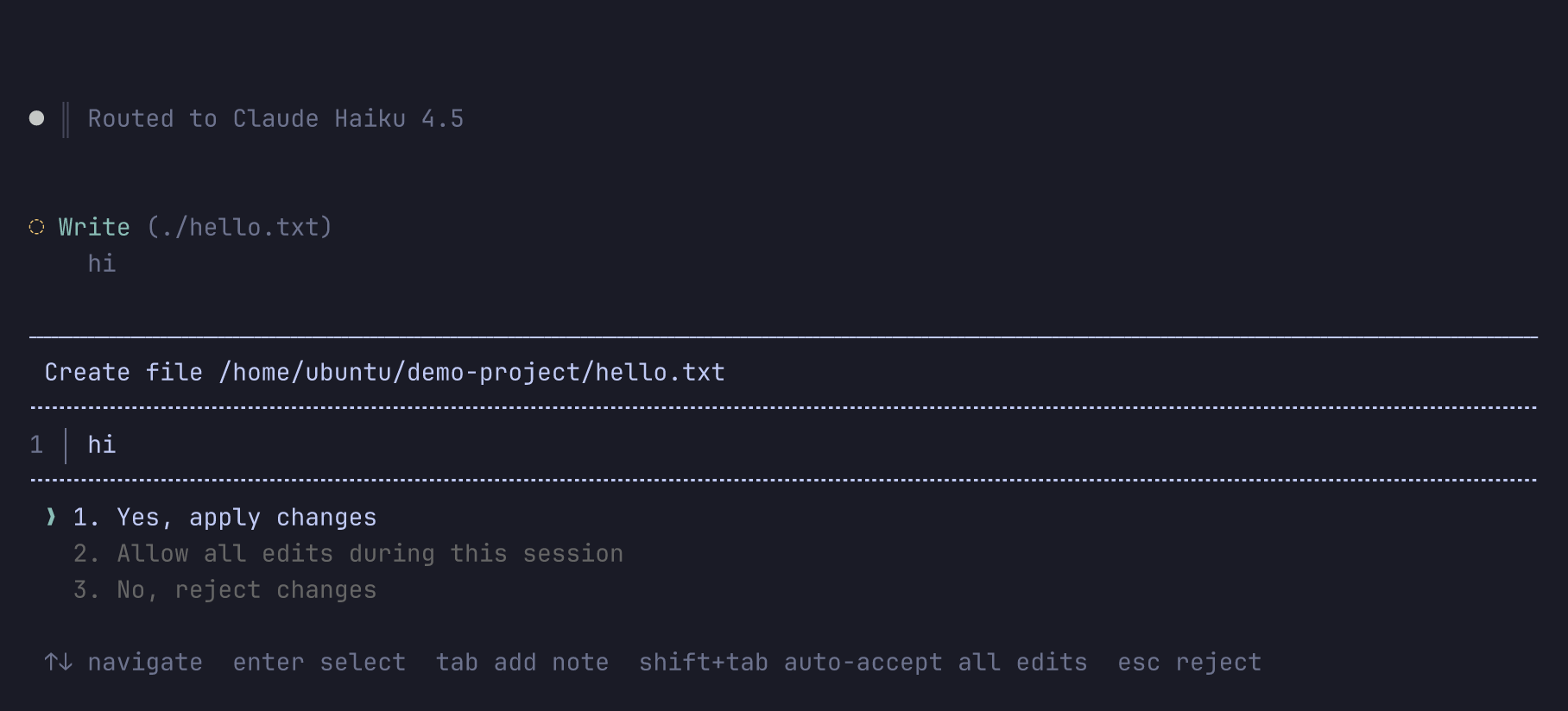
"Allow all edits during this session" lasts until you quit. To remember an answer for good, add a rule in /permissions.
While a turn is running
You do not have to wait for the agent to finish before typing the next thing.
| What you want | What to press |
|---|---|
| Let the agent finish, then send | Enter (the default) |
| Cut in now and redirect the agent | Ctrl+Enter, or the chord Ctrl+X Ctrl+S |
Queued messages reach the agent at its next step, or when the turn ends. Steering interrupts the turn and sends your message immediately.
The While a turn runs setting swaps which of the two Enter does; Ctrl+Enter always does the other one. Ctrl+Enter needs the kitty keyboard protocol or modifyOtherKeys, so the chord Ctrl+X Ctrl+S is offered as a fallback that works in any terminal.
Reviewing and undoing changes
The CLI snapshots your files before every message you send, so nothing the agent does is one-way. The snapshot is a full picture of the working tree, kept outside your project under ~/.abacusai/checkpoints, so it captures the agent's edits, shell commands and your own changes alike and never writes to your repository's .git. It works in a folder that is not a repository at all. Dependency and build folders are skipped unless git tracks them, as are files over 8 MB.
| Command | What it does |
|---|---|
/diff | Review the changes as a git diff, in a viewer you can page through |
/rewind, also /undo and /checkpoint | Go back to an earlier point: the conversation, the code, or both |
/fork | Keep this conversation and start a new one from an earlier message |
/recap | One line on what this conversation has done so far |
/export [path], /copy | Write the conversation to a file, or copy the last reply |
/diff shows everything in your checkout that differs from HEAD, the agent's edits and your own together, one file at a time. It needs a git repository.
/rewind lists your messages, newest first. Pick one and choose what to restore:
- Conversation only — the history goes back, your files stay as they are
- Code only — the files go back, the conversation carries on
- Both
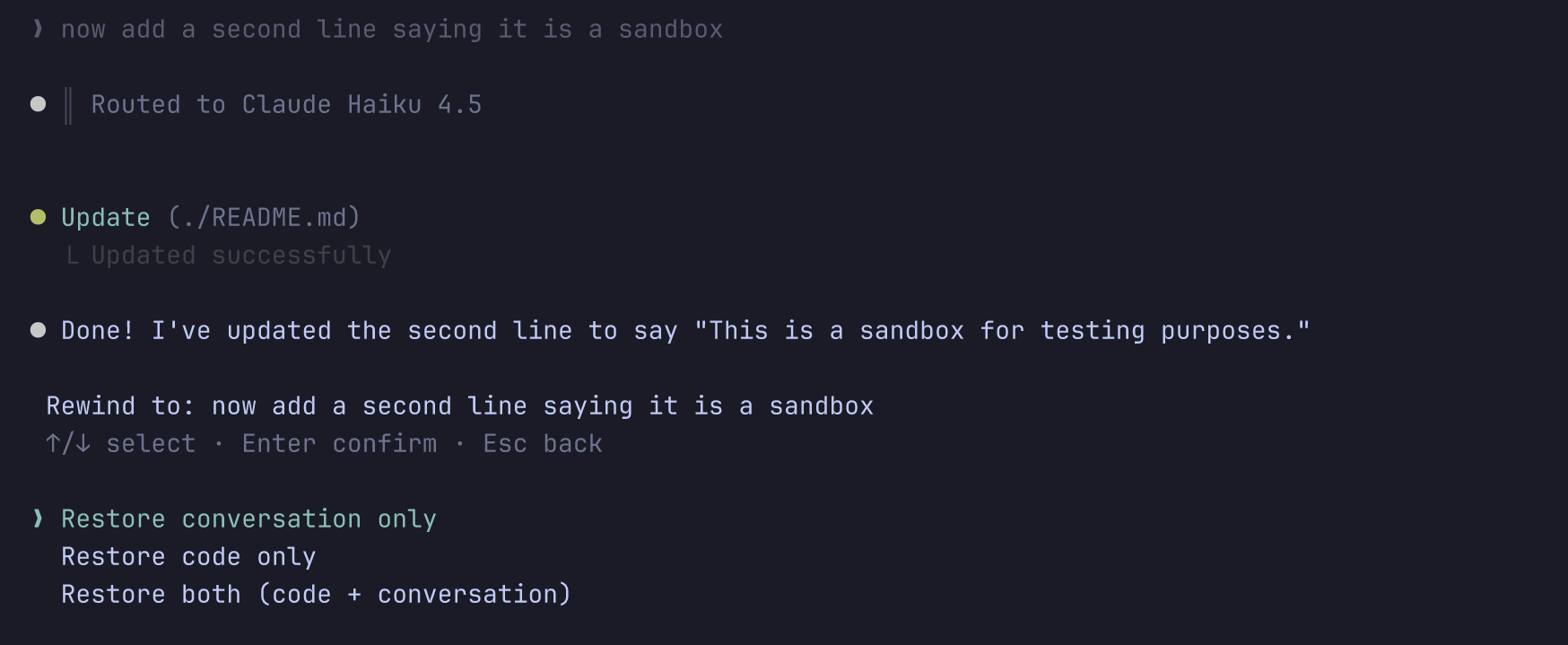
The message you picked returns to the composer, so you can reword it and try again. Where a turn has no checkpoint, only the conversation can go back. /undo and /checkpoint are other names for the same command, and Esc Esc on an empty composer while the agent is idle opens it too.
/fork never touches the conversation you are in. It copies the history up to the message you pick into a new conversation and leaves the original in /resume — the way to try a second approach without losing the first.
Background tasks
The agent can start a long-running command — a dev server, a test suite, a build — and keep working while it runs. It reads the output as it arrives and picks the task up again when it exits, even if that happens in the middle of a later turn.
| Command | What it does |
|---|---|
/tasks | List the background tasks in this conversation |
/tasks stop <id> | Stop one task |
/tasks cancel | Cancel a pending automatic resume |
Quitting the CLI stops the background shells it started — every conversation the session touched, not only the one you are on. Switching conversation with /resume therefore does not leave the earlier one's shells running after you quit.
Commands
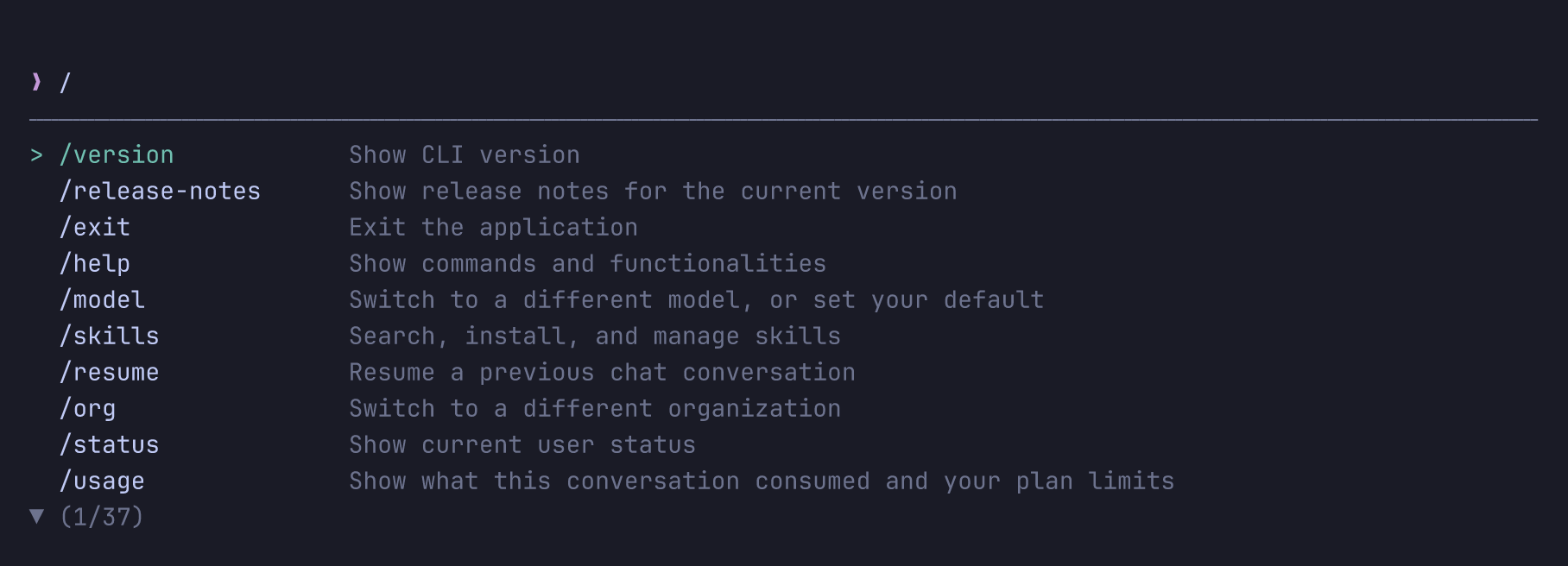
Type / to open the picker, or type the whole command.
A command also works as the launch prompt: abacusai /status or abacusai "/review 123" runs it in the composer instead of sending it to the model. A command that still needs something from you opens its picker with the line waiting.
The conversation
| Command | What it does |
|---|---|
/new | Start a new conversation. The old one stays in /resume. |
/resume <id or title> | Resume a previous conversation |
/fork | Start a new conversation from an earlier message. See Reviewing and undoing changes. |
/rewind, /undo, /checkpoint | Rewind the conversation and/or the code to an earlier point. Three names for the same command. |
/compact | Summarize the conversation so far to free up context |
/recap | One-line recap of what this conversation has done |
/goal [<goal>|clear] | Set a goal the agent checks before ending each turn, show it, or clear it |
/btw <question> | Ask a side question without adding it to the history |
/stop | Stop the current response and any running bash tools |
/clear | Clear the screen, staying in the conversation |
/rename [title], /delete | Rename or delete this conversation |
/copy, /export [path] | Copy the last reply, or export the conversation to a file |
/diff | Show the git diff of all changes in an interactive viewer |
/good [comment], /bad [comment] | Rate the last response |
Configuration
| Command | What it does |
|---|---|
/model | Switch model, or set your default |
/mode [name] | Show or switch the permission mode |
/settings | View and change settings for this user or workspace |
/permissions | Manage the allow, ask and deny rules |
/providers | Manage model providers and API keys |
/skills <list|add|add-global|update> | Search, install and manage skills |
/mcp | Manage MCP servers and Abacus connectors |
/memory [on|off|<name>] | See what the agent remembers about this repository, or turn memory off. See Memory. |
/add-dir <path> | Give the agent access to another directory for this session |
/tui <default|fullscreen> | Switch between the default and fullscreen interface |
/vim <on|off> | Turn modal editing on or off |
/import [--dry-run] | Import your Claude Code setup: CLAUDE.md, MCP servers, permission rules, skills, commands and memory |
Account and the app
| Command | What it does |
|---|---|
/login [email|api_key], /logout | Sign in or out |
/org <name> | Switch organization |
/status | Show who you are signed in as |
/usage [--detail] | What this conversation consumed, and your plan limits |
/version, /release-notes | Version and what changed in it |
/feedback | Send feedback to Abacus.AI |
/help, /exit | Help, and quit |
exit, quit, clear, cls and help also work without the leading slash. A skill is invoked the same way: /release-notes since v2.1.
Choosing a model
/model lists the models your account can use, plus any providers you added yourself.
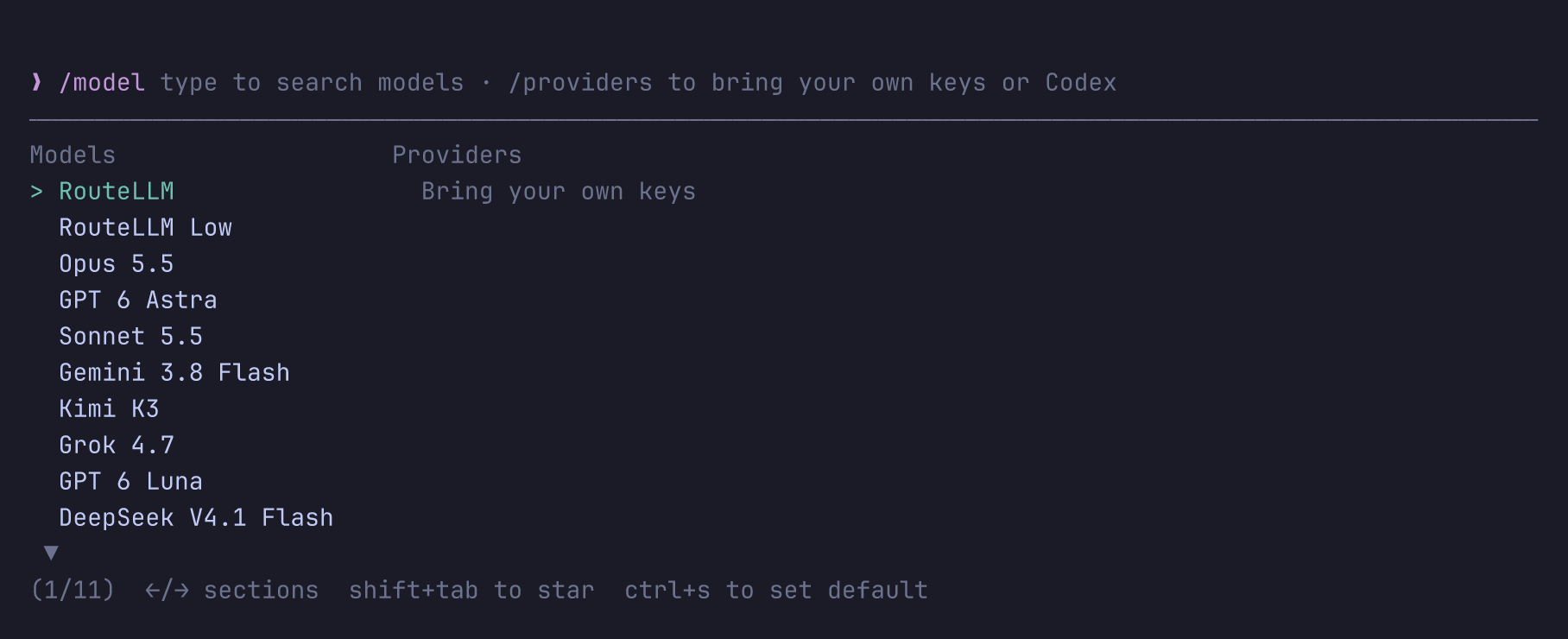
Enter switches the current conversation, Ctrl+S sets your default for new ones, and Shift+Tab stars a model so it sorts to the top. To run on your own API key, your ChatGPT subscription or a local model server, see Providers.
Images
Paste an image with Ctrl+V and it is attached to your message. Images in replies and tool results are drawn inline in terminals that support a graphics protocol, such as Ghostty, Kitty and WezTerm. Elsewhere, and with Inline images turned off, the name, type and pixel size stand in for the picture.
Documents
Point the agent at a Word, Excel, PowerPoint or PDF file and it reads it — a spec, a spreadsheet of test cases, a vendor's API reference. .docx, .xlsx, .xls, .pptx and .pdf are converted to text on your machine; no separate step and nothing to install.
Long documents are read a part at a time. A spreadsheet read names the sheets still ahead and where to carry on, and a PDF read returns at most five pages per call and says what it showed, so the agent walks a long file in order rather than losing the middle of it. Ask for a particular sheet or page range and it starts there.
A file that merely carries an Office extension — an HTML or TSV export saved as .xls, say — is still read as plain text.
Working in a worktree
abacusai --worktree starts the session in a fresh git worktree under .abacusai/worktrees instead of your checkout, so the agent's changes never touch the branch you are on. -w <name> names it, and --tmux runs the session inside tmux.
On exit the CLI asks whether to keep the worktree or remove it. Keep it and the exit screen prints abacusai -w <slug> --resume <id>: that reopens the conversation inside the worktree, where its changes are. A plain --resume from your checkout would reopen it in the wrong folder. When the worktree is removed, the plain resume command is what you get.
Troubleshooting
Ctrl+Enter sends instead of steering
The terminal is not reporting the modifier. Use the chord Ctrl+X Ctrl+S, which works everywhere.
The colors are hard to read
The CLI asks the terminal whether its background is dark or light, and a translucent window or a stale COLORFGBG can make it answer wrongly. Set Theme to dark or light in /settings and restart.
The interface fights tmux copy mode
Inside tmux, Zellij or screen the CLI uses the fullscreen interface by default, because the default one writes into scrollback those multiplexers manage themselves. /tui default switches back for the current run.
For further help, reach out at support@abacus.ai.