Settings
The CLI, the VS Code extension and the Desktop app read the same settings files, so a change you make in one applies in the others. This page covers where settings live, how they combine, and what each one does.
Models, API keys and subscriptions have their own page. See Providers.
Where settings live
| Scope | Location | Applies to | Good for |
|---|---|---|---|
| User | ~/.abacusai/config.json | You, in every project on your machine | Your defaults: model, notifications, updates |
| Workspace | <project>/.abacusai/config.json | Everyone who opens that project | Team rules: permissions, timeouts, project providers. Commit it to share. |
| Settings file | Any JSON file passed with abacusai --settings <file> | One CLI session | CI jobs and scripts |
| Environment | ABACUS_* variables | The current shell or container | Quick overrides, CI |
| VS Code | abacusAgent.* in the VS Code settings editor | The extension only | Editor options such as panel position and inline diffs |
Both config.json files use the same keys. A key that is missing from one file inherits its value from the layer below.
Precedence
When the same setting is defined in more than one place, the higher layer wins:
- Environment variables
- CLI flags such as
--model - Files passed with
--settings - Workspace
config.json - User
config.json - Built-in defaults
Objects merge key by key, and a list replaces the one below it — with one deliberate exception. The permission rule lists (allow, ask, deny, autoModeInstructions) and additionalDirectories are unioned across the user and workspace files instead. A project's deny rule can therefore never be dropped by your user file, and your own allow rule never by a project file.
Permission lists used to replace each other like any other list, so rules had to be kept in a single scope. They are now merged, and deny still beats ask, which still beats allow, whichever file each rule came from.
One layer is also gated: a project you just cloned cannot widen its own permissions or start its own servers until you trust the folder. See Workspace trust.
Change a setting
In the CLI
Run /settings inside a session. Use Tab to switch between your user settings and the workspace settings.
| Key | Action |
|---|---|
↑ ↓ | Move between settings |
← → | Change a toggle or a choice |
Enter | Edit a number, or open a picker |
Tab | Switch between the user and workspace scope |
r | Reset the setting in this scope so it inherits again |
Esc | Close |
Each row shows where its value comes from: user, workspace, env, override (a --settings file or a CLI flag) or default. A value that comes from env or override cannot be edited here, because the file would not win. Each row also says when a change takes effect: immediately, on your next conversation, or after a restart.
In VS Code
Click the gear icon at the top of the Abacus AI panel. The settings page opens as an editor tab.

| Section | What you find there |
|---|---|
| Account | Who you are signed in as, your organization, this month's credit usage |
| General | Notifications, panel position |
| Agent | AGENTS.md loading, default model, default permission mode, use my own API keys, local only mode, and the link to Local LLM providers |
| MCP Servers | Add, edit and remove servers. See MCP configuration. |
| Skills | Installed skills and the marketplace. See Skills. |
Settings that the CLI shares are written to your user config.json, so the CLI picks them up too.
By hand
Open either config.json in an editor. It is plain JSON.
{
  "permissionMode": "ACCEPTEDITS",
  "notifications": "sound",
  "autoLoadAgentsMd": true,
  "permissions": {
    "allow": ["Bash(npm test *)", "Bash(git log *)"],
    "deny": ["Read(.env)"]
  }
}
To set a default model, pick it in /settings or in the extension rather than typing an id. The picker writes the right value for you.
Settings reference
All keys go in config.json. The CLI column is the label you see in /settings, and the VS Code column is the id in VS Code's settings editor. A blank cell means that surface does not show the setting.
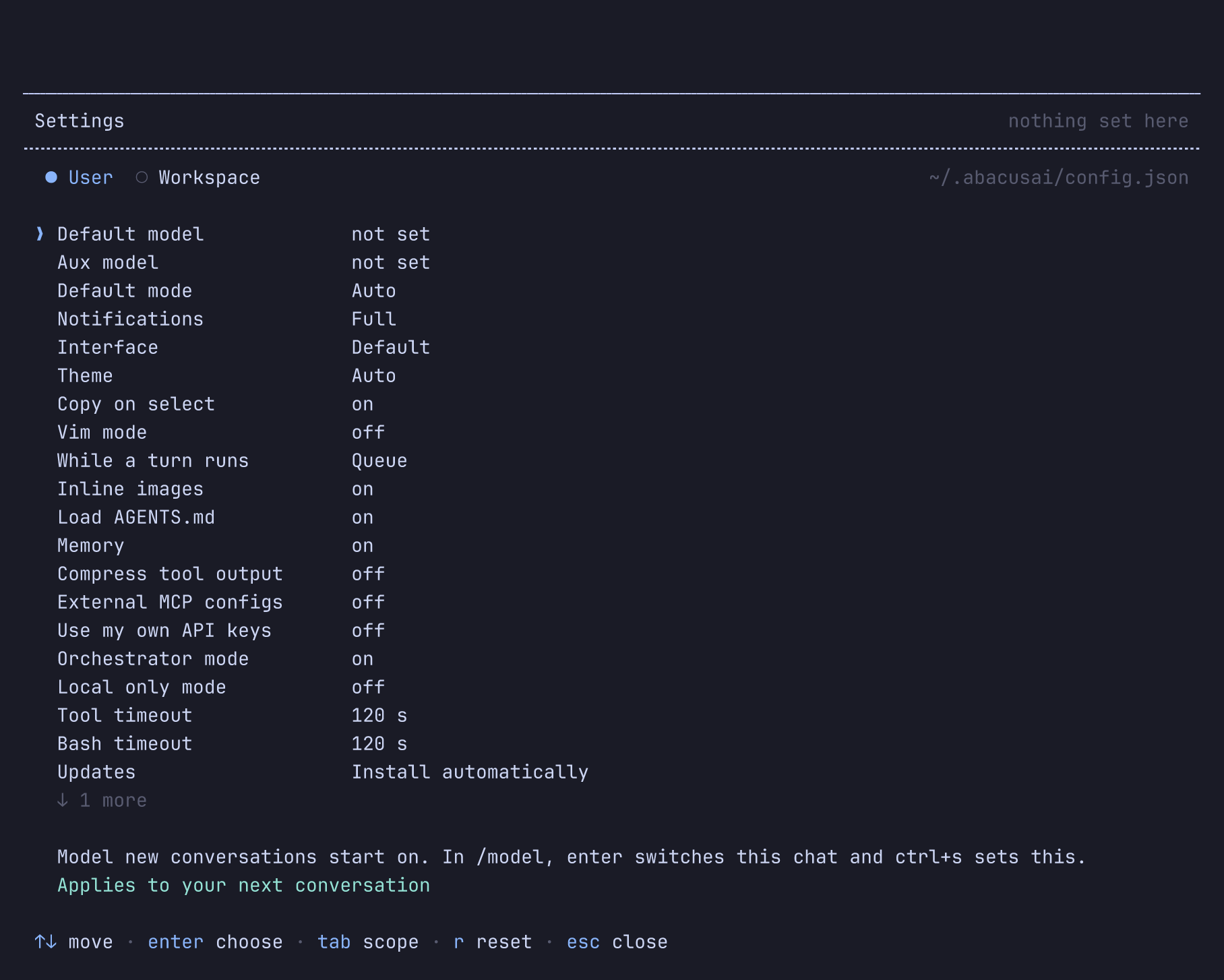
Models and modes
| Key | CLI | VS Code | Default | What it does |
|---|---|---|---|---|
model | Default model | abacusAgent.defaultModel | Abacus.AI default | Model that new conversations start on |
smallModel | Aux model | unset | Titles chats that run on a local provider. Abacus.AI chats are titled by the server. | |
permissionMode | Default mode | abacusAgent.defaultPermissionMode | Auto | Mode a session starts in. See Permission modes. Restart to apply. |
permissions | /permissions | unset | Allow, ask, deny and auto-mode rules. See Permission rules. | |
orchestratorMode | Orchestrator mode | abacusAgent.orchestratorMode | on | Your selected model plans and reviews while a cheaper model implements, to stretch your credits. User scope only. |
useOwnApiKeys | Use my own API keys | abacusAgent.useOwnApiKeys | off | Bill supported Abacus.AI models to your own API key instead of credits. See Providers. |
localOnly | Local only mode | abacusAgent.localOnly | off | Show local models and local chats only. See Providers. |
providers | /providers | Local LLM providers | unset | Your own model providers. See Providers. |
Interface
| Key | CLI | VS Code | Default | What it does |
|---|---|---|---|---|
tui | Interface | default | default draws inline and leaves the transcript in your terminal's scrollback; fullscreen takes the whole screen, answers the mouse, and is the default inside tmux, Zellij and screen | |
theme | Theme | auto | Whether colors are chosen for a dark or a light terminal. Auto asks the terminal. Set it yourself when the terminal reports the wrong one. Restart to apply. | |
tuiCopyOnSelect | Copy on select | on | In the fullscreen interface, copy a mouse selection as soon as the button is released | |
vimMode | Vim mode | off | Edit the composer modally. See Using the CLI. | |
submitWhileRunning | While a turn runs | abacusAgent.submitWhileRunning | queue | What Enter does with a message typed while the agent works: queue it for the next step, or steer the turn now. Ctrl+Enter always does the other. User scope only. |
showImages | Inline images | on | Draw images where they appear, in terminals that support a graphics protocol | |
notifications | Notifications | abacusAgent.notifications | full | How you are told a turn ended while the window is unfocused: full, sound or off. See Turn-end notifications. |
preventSleep | Keep awake | abacusAgent.preventSleep | system | Keep the computer awake while the agent works: system, display (also keeps the screen on) or off |
preventSleepOnLidClose | Keep awake, lid closed | abacusAgent.preventSleepOnLidClose | off | Keep working when the laptop lid closes, where the system allows it (macOS on power, Linux). No effect while Keep awake is off. |
Turn-end notifications
The notification says how the turn ended — finished, failed or paused — and names the conversation, or the project folder while the conversation has no title yet, so several sessions can be told apart. Failed turns play the alert sound and paused ones the waiting tone.
A turn you stopped yourself sends nothing. Focus is read when the notification fires rather than when you sent the message, so leaving the terminal mid-turn gets you one. Both interfaces notify, fullscreen included.
Context and tools
| Key | CLI | VS Code | Default | What it does |
|---|---|---|---|---|
autoLoadAgentsMd | Load AGENTS.md | abacusAgent.autoLoadAgentsMd | on | Send your AGENTS.md files at the start of each conversation |
autoMemoryEnabled | Memory | on | Let the agent keep notes on this repository and read them in later conversations. See Memory. | |
autoMemoryDirectory | unset | Keep those notes somewhere other than the default folder. User scope only. See Memory. | ||
compressToolOutput | Compress tool output | off | Shrink command output and file reads before they reach the model | |
loadExternalMcpConfigs | External MCP configs | abacusAgent.loadExternalMcpConfigs | off | Also discover MCP servers configured in Cursor, VS Code and Claude Desktop. Restart to apply. |
toolTimeoutMs | Tool timeout | 120 s | How long any single tool may run, from 1 to 600 seconds | |
bashToolTimeoutMs | Bash timeout | 120 s | Default timeout for shell commands, overridable per call |
Updates
| Key | CLI | VS Code | Default | What it does |
|---|---|---|---|---|
autoUpdate | Updates | auto | auto installs and relaunches, prompt asks first, off only tells you an update exists. User scope only. | |
updateChannel | Update channel | detected | latest for released versions or canary for the tip of tree. User scope only. |
Permission modes
The agent asks before it runs tools that change things. The mode decides how much it asks.
| Mode | What happens | --permission-mode | permissionMode value |
|---|---|---|---|
| Auto | Runs hands-free. Every command and edit is checked against your workspace and your request, and anything dangerous or unrelated is refused. The default. | auto | AUTO |
| Supervise | Asks before edits and other mutating tools | supervise | DEFAULT |
| Accept edits | Applies file edits without asking; still asks for commands and other tools | accept-edits | ACCEPTEDITS |
| Plan | Read-only research and planning; edits wait for your approval of the plan | plan | PLAN |
| Unsupervised | Runs any command without asking | unsupervised | YOLO |
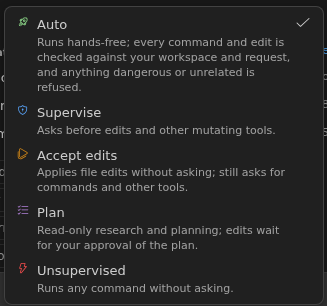
Auto is the mode a session starts in, and Supervise is what used to be called Normal. The old names still work everywhere a mode is named — normal and default mean Supervise, yolo and bypassPermissions mean Unsupervised.
Press Shift+Tab in the CLI to cycle modes for the current session: Auto → Supervise → Accept edits → Plan. Pressing it once more offers Unsupervised, which needs a second press within three seconds to confirm. /mode shows the current mode and /mode <name> switches straight to one. In VS Code, use the mode dropdown next to the send button.
To start in a mode every time, set permissionMode, or pass --permission-mode <mode> to the CLI. --auto-accept-edits and --dangerously-skip-permissions are shorthands for Accept edits and Unsupervised.
Deny and ask rules apply in every mode, Unsupervised and Auto included. No mode can run something a deny rule forbids, and a tool matched by an ask rule always prompts.
How Auto mode decides
In Auto mode a mutating call is judged server-side against the directories the session may work in and against what you actually asked for, before it reaches your machine. Anything it allows runs with no prompt; anything dangerous or unrelated to your request is refused, and the agent is told why, so it asks you instead of retrying.
You can steer that judgement in plain language with the Auto mode list in /permissions, for example "Pushing to feature branches is fine without asking" or "Never run git push". These instructions can relax confirmations or forbid anything, but they can never authorize the dangerous class of actions. /permissions also lists the last few calls Auto mode refused, under "Recently denied".
MCP tools are covered too. A call settled on your machine — matched by a permission rule, or declared read-only by its server — is decided there as usual. Anything left over goes to the same server-side gate instead of being refused for being an MCP call.
Permission rules
Rules decide specific tools before the mode gets a say. They live under permissions in either config.json. Edit them with /permissions in the CLI, or answer "always allow" when the agent asks.
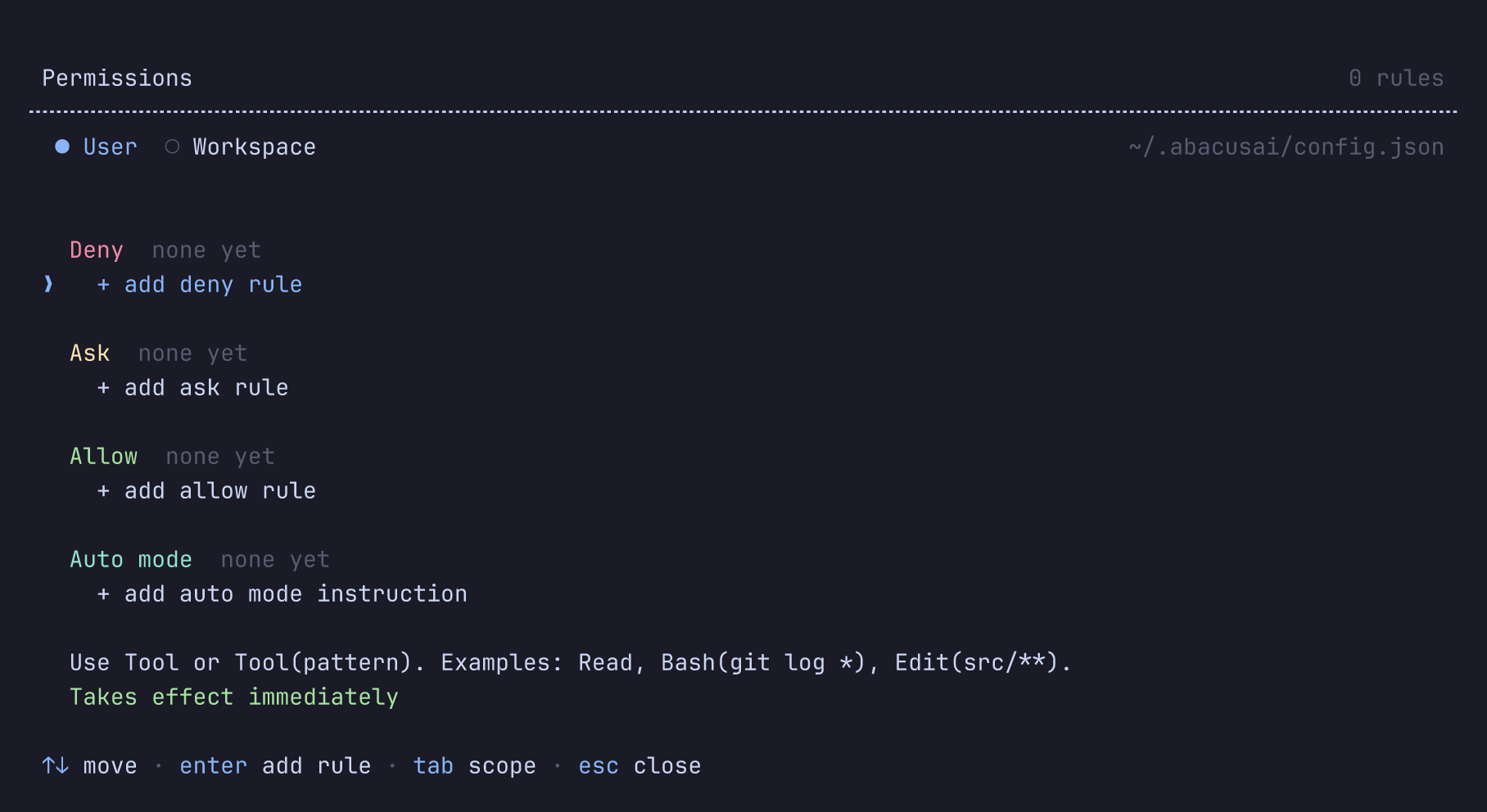
{
  "permissions": {
    "allow": ["Bash(git log *)", "Bash(npm test *)", "Read"],
    "ask": ["Edit(src/generated/**)"],
    "deny": ["Read(.env)", "Bash(rm -rf *)"],
    "autoModeInstructions": ["Never run git push"],
    "strictness": "strict"
  }
}
| Pattern | Matches |
|---|---|
Bash or Bash(*) | Every use of the tool |
Bash(git log *) | Commands that start with git log. Bash(npm run test:*) is the same thing written the other way. |
Read(.env), Edit(src/**) | File paths, with gitignore-style wildcards |
mcp__github__create_issue | One MCP tool, written as mcp__<server>__<tool> |
Deny rules are checked first, then ask, then allow, then the built-in list of commands that are always safe. The first match wins. With no match, the mode decides.
A deny or ask rule that names a bare file or a single folder applies at any depth, so Read(.env) also covers config/.env. Patterns that start with ./, are absolute, or name more than one path segment stay where you put them, and allow rules are never widened this way.
For one session, --allowed-tools and --disallowed-tools add to the allow and deny lists.
"Always allow" answers are saved to the workspace config.json and show up in /permissions, where you can remove them. Rules from your user file and the workspace file are merged, so it does not matter which scope a rule lives in — but a rule you want your team to have belongs in the workspace file, which is committed. A workspace file's allow rules only count once you have trusted the folder; see Workspace trust.
Files that always ask
Some files decide what runs on your machine without being source code: git hooks and config, an editor's task runner, a shell's startup file, a package manager's plugins, a hook manager's config, the agent's own settings. Writing one is never automatic. In every mode but Unsupervised it comes back to you — Supervise and Accept edits prompt, Auto refuses rather than decide for you — and no allow rule pre-approves it: Edit(**) in your allow list does not cover .git/hooks/pre-commit. Deny and ask rules apply as usual, and the prompt tells you why it appeared.
| Protected | Examples |
|---|---|
| Directories, matched at any depth | .git, .config/git, .vscode, .idea, .husky, .cargo, .devcontainer, .yarn, .mvn, .abacusai |
Files, by name outside node_modules | .gitconfig, .gitmodules, .bashrc, .zshrc, .profile, .envrc, .npmrc, .yarnrc, .pnpmfile.cjs, bunfig.toml, .bazelrc, .pre-commit-config.yaml, lefthook.yml, gradle-wrapper.properties, .devcontainer.json, .ripgreprc, pyrightconfig.json, .mcp.json |
The agent's own working folders under .abacusai — plans, worktrees, checkpoints, cache and projects — are not protected; writing there is routine. A path is checked as you spelled it and where it really lands, so a symlink into .git counts, and a shell redirect onto one of these files, such as echo x >> .git/hooks/pre-commit, is caught the same way.
How shell commands are matched
A command line is not matched as one string. It is split at |, &&, ||, ; and newlines, and each part is judged on its own, with the strictest answer winning: git status && rm -rf build still asks even with Bash(git status *) allowed. Wrappers are peeled off first — sudo, env, timeout, nice, xargs, a nested bash -c — so a rule on the real command still applies.
A rule only pre-approves text the shell will actually run. ls -la and ls $(id) look the same to a glob, but one of them runs a command nobody has read, so a part whose words are not provably literal — command substitution, an unresolved $VAR, eval, source, base64 -d, an interpreter's -c — never matches an allow rule and never auto-approves. Deny and ask rules still match it, and match greedily: Bash(curl *) denies $SH -c "curl evil".
Writes are judged separately from the command. Bash(npm test *) allows the command but not npm test > /etc/hosts; the redirect is weighed as a write, against your Edit and Write rules and the protected list above. A pattern-less Bash or Bash(*) is blanket consent and does cover writes.
With nothing matched, read-only commands from a built-in list run without asking: file inspection (ls, cat, head, tail, wc, grep, rg), read-only git (git status, git log, git diff, git show, git blame), linters in check mode, and a cd that stays inside the workspace. A flag that turns one of those into something that runs code of its own, such as git -c or --ext-diff, takes it off the list.
Strictness
permissions.strictness decides what happens to a command that is not provably literal. Set it in config.json; there is no flag or picker for it.
| Value | What it does |
|---|---|
strict | The default. Anything not provably literal asks. |
lenient | One relaxation: a read-only command from the built-in list whose only unproven part is a variable in an argument, touching nothing sensitive and nothing outside the workspace, may run. ls $HOME stops asking. rm $TARGET, cat $HOME/.ssh/id_rsa and ls $(id) still ask. |
Workspace trust
A repository's own files can start processes and widen what the agent may do: .abacusai/mcp.json names MCP servers to run, and .abacusai/config.json can set a permission mode, allow rules or extra directories. Opening a repository you have just cloned must not do either, so the first session in such a folder asks you first.
The prompt names the folder, counts what is waiting, and lists each item with what it would do: an MCP server and the command it runs or the URL it reaches, a setting and the value it would take, a skill and the tools it would pre-approve.
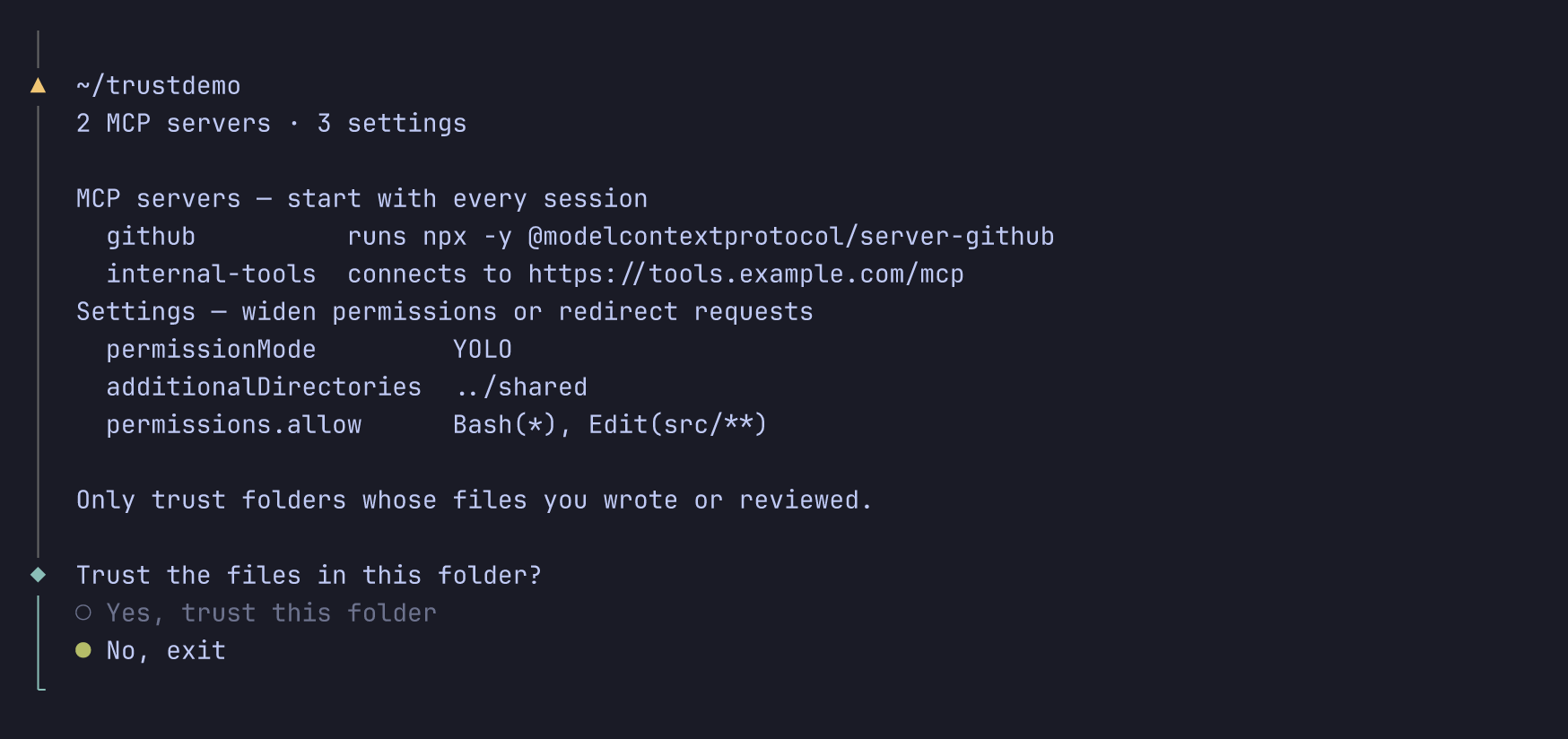
No, exit runs nothing from the folder and you are asked again next time; nothing is recorded. Yes applies to that folder and everything below it. When the list is too long for the screen, a third answer shows the rest before you decide. Nothing is pre-selected for you when the folder would run something — you have to choose "yes" deliberately.
| Only in a trusted workspace | In any workspace |
|---|---|
MCP servers from .abacusai/mcp.json and from mcpServers in the project config | permissions.deny and permissions.ask, which can only restrict |
permissionMode, permissions.allow, permissions.strictness | Every other project setting |
additionalDirectories, additionalMcpConfigPaths, loadExternalMcpConfigs, baseUrl | Project skills themselves — only their allowed-tools is held back |
Until the folder is trusted, a project skill also cannot shadow a built-in or global skill of the same name. Your own ~/.abacusai files, --settings and --mcp-config files, and command-line flags are yours and are never gated. Running from your home folder there is no project layer at all.
Trusted folders are recorded in ~/.abacusai/trusted-workspaces.json with the date. Delete an entry to be asked again. Your home folder and the filesystem root are never recorded — trusting either would silently cover every repository below it — so they are trusted for the one session only.
# Trust the folder for one run, recording nothing. The switch for CI.
ABACUS_TRUST_WORKSPACE=1 abacusai -p "run the tests"
Print mode never asks. Without trust it runs anyway, without the project's servers and gated settings, and names what it ignored in one stderr warning. See Scripting and CI.
In VS Code the extension follows VS Code's own Workspace Trust instead of asking separately. In Restricted Mode it tells you what is being ignored and offers Show details and Manage Workspace Trust. Trusting the workspace there applies immediately — the project's settings, skills and MCP servers come up without a reload — though a session already running keeps the permission rules it started with.
Environment variables
Environment variables override every file. They are handy in CI and containers.
| Variable | What it sets |
|---|---|
ABACUS_API_KEY | Signs you in without a stored login |
ABACUS_MODEL | The model, same as model |
ABACUS_PERMISSION_MODE | auto, supervise, accept-edits, plan or unsupervised |
ABACUS_TRUST_WORKSPACE | 1 trusts the current folder for this run only. See Workspace trust. |
ABACUS_AUTO_LOAD_AGENTS_MD | true or false |
ABACUS_DISABLE_AUTO_MEMORY | Turns off the agent's repository notes |
ABACUS_ORCHESTRATOR_MODE | true or false |
ABACUS_AUTO_UPDATE | auto, prompt or off |
ABACUS_TOOL_TIMEOUT_MS | Tool timeout in milliseconds |
ABACUS_BASH_TIMEOUT_MS | Shell command timeout in milliseconds |
API keys for your own providers, such as OPENAI_API_KEY, are covered on the Providers page.
CLI flags
Run abacusai --help for the full list. These flags change settings for one session:
| Flag | Effect |
|---|---|
--model <id>, -m | Model for this session |
--permission-mode <mode> | auto, supervise, accept-edits, plan or unsupervised |
--auto-accept-edits | Shorthand for --permission-mode accept-edits |
--dangerously-skip-permissions | Shorthand for --permission-mode unsupervised |
--allowed-tools <pattern> | Add an allow rule. Repeat for more. |
--disallowed-tools <pattern> | Add a deny rule. Repeat for more. |
--add-dir <path> | Let the agent work in another directory too. Repeat for more. |
--no-agents-md | Skip AGENTS.md |
--settings <file> | Merge a JSON settings file. Repeat for more. |
--mcp-config <file> | Add an MCP config file. Repeat for more. |
--resume [id], -r | Resume a conversation by id, or pick one from a list |
--continue, -c | Continue the most recent conversation |
--worktree[=<name>], -w | Run in a git worktree under .abacusai/worktrees |
--tmux | Run the worktree session inside tmux. Needs --worktree. |
--debug | Log at debug level and print the log file path |
--print, -p | Print the answer and exit, without the interactive interface. See Scripting and CI. |
The CLI also takes subcommands that run instead of a session:
| Command | What it does |
|---|---|
abacusai auth login|logout|status|switch | Sign in, sign out, show who you are, or switch organization |
abacusai upgrade | Check for updates and install the latest version |
abacusai release-notes | Show the release notes for this version |
abacusai shell-integration | Send commands your shell does not recognize to abacusai -p |
abacusai agent-browser [args] | Run the bundled browser automation CLI |
VS Code settings
A few options only make sense in the editor. Find them in VS Code's settings editor under "Abacus", or click "Open settings" at the bottom of the Abacus Settings page.
| Setting | What it does |
|---|---|
abacus.viewKind | Where the panel opens: primarySidebar, secondarySidebar, editor or window |
abacusAgent.inlineDiffEditor | Show the agent's edits inline in your file with accept and reject buttons, instead of a two-pane diff |
abacusAgent.showStatusBar | Show the Abacus AI indicator in the status bar |
abacusAgent.notifications | Sound and popup, sound only, or off |
abacusAgent.defaultModel | Model for new conversations |
abacusAgent.defaultPermissionMode | Mode new conversations start in |
abacusAgent.submitWhileRunning | Whether Enter queues a message or steers the running turn |
abacusAgent.preventSleep | Keep the computer awake while the agent works |
abacusAgent.preventSleepOnLidClose | Keep working when the laptop lid closes |
abacusAgent.orchestratorMode | Let a cheaper model implement while your model plans and reviews |
abacusAgent.localOnly | Use local providers only |
abacusAgent.baseUrl | Point the extension at a different Abacus.AI endpoint |
Troubleshooting
A setting does not apply
Open /settings and look at the tag on the row. env or override means an environment variable, a --settings file or a flag is winning. workspace while you edited the user file means the workspace file wins. If a setting you put in a project's config.json is ignored entirely, the workspace is probably not trusted yet — see Workspace trust.
A config.json is not being read
Both config.json files parse as JSONC, so comments and trailing commas are fine, as in VS Code's settings.json.
A real syntax error is reported once at startup, naming the file with the line and column. That file is skipped for the session — the other scopes still load — and writes to it are refused, so an always allow or a /model pick cannot overwrite it while it is broken. Fix the spot it named and restart.
Writes touch only the keys that change, so your comments and layout survive a /model pick or a new permission rule.
A change did not take effect
permissionMode, theme and loadExternalMcpConfigs apply the next time you start. The model, the timeouts, autoLoadAgentsMd and autoMemoryEnabled apply to your next conversation. Everything else is live. Each row in /settings says which of the three it is. To change the current session, use /model or Shift+Tab.
For further help, reach out at support@abacus.ai.